Our collection
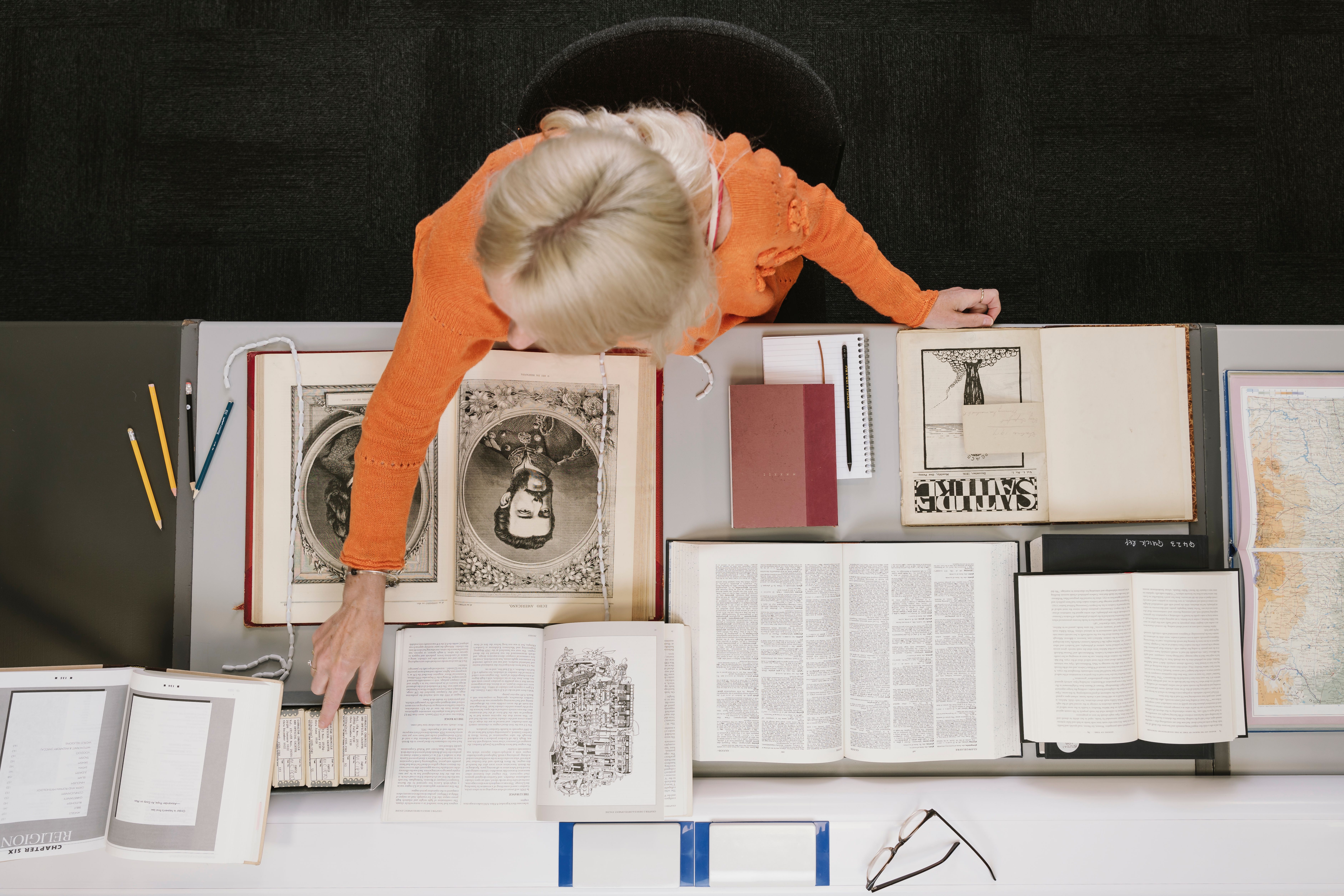
Our shelves hold over 170 million items – a living collection that gets bigger every day.
Our shelves hold over 170 million items – a living collection that gets bigger every day.
We have millions of books, but also newspapers, maps, sound recordings, photographs, patents and stamps.
Search our available catalogues below. If you need tips or guidance on searching the catalogues, requesting items or understanding the different areas of our collection, explore our research guides.
You'll need a Reader Pass to see material in our Reading Rooms. You can find out how to use the Library here.
We are recovering from a cyber-attack that disrupted our systems and services. Recovery is underway, but not everything is back yet. Thank you for your continued patience and support.
Find out what’s currently available and how you can use the Library during this recovery period.
The main British Library catalogue, including books, printed material, and some electronic resources.
An interim catalogue containing archives, manuscripts and visual arts collections.
An interim catalogue for digital journals and books published in the UK. This catalogue contains records created before October 2023.
This interim catalogue includes records from our sound and moving image collection.
Linked open data for books and journals published or distributed in the United Kingdom and Ireland since 1950, and electronic publications since 2013.
Over 500,000 records of works printed in the English-speaking world before 1801. Hosted by the Consortium of European Research Libraries (CERL).
The international database of 15th-century European printing, created by the British Library with contributions from institutions worldwide.
Join our mailing list to keep up to date with Library news and events.
By clicking 'Sign up' you agree that you wish to regularly receive news and update emails from the British Library. You can unsubscribe at any time. View our Privacy Policy for more information.
If you encounter any problems subscribing please contact us.


.png?auto=format)