Research
Our collections, study spaces and services are open to everyone. Whether you're an academic or conducting personal research, all you need is a free Reader Pass.
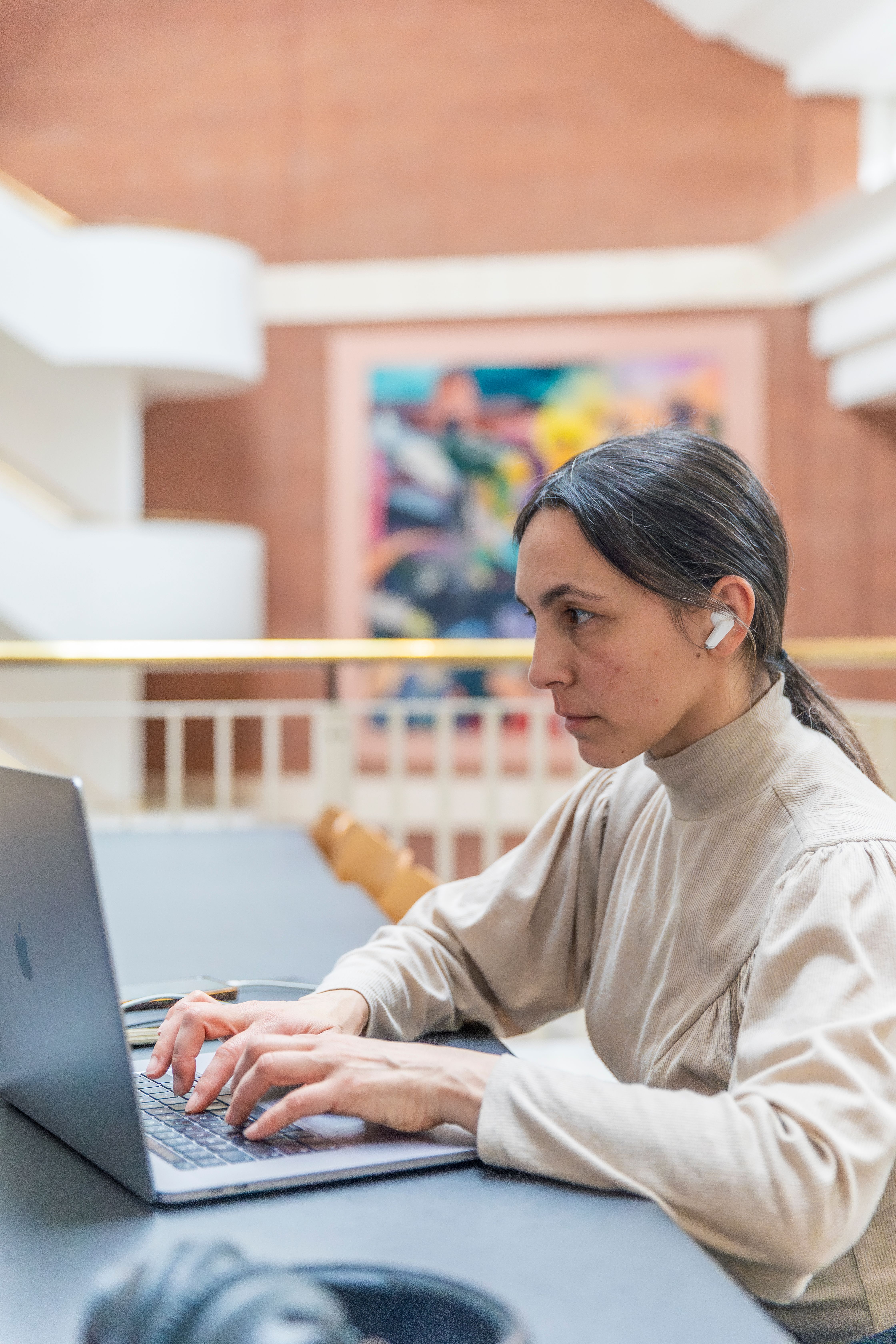
Photo by Sam Walton


What can I do at the Library?
We're a bit different to your local library. We house the national collection, with many unique items. You can't take books home, but you can use our Reading Rooms in London and Yorkshire for personal study and to access our collections.
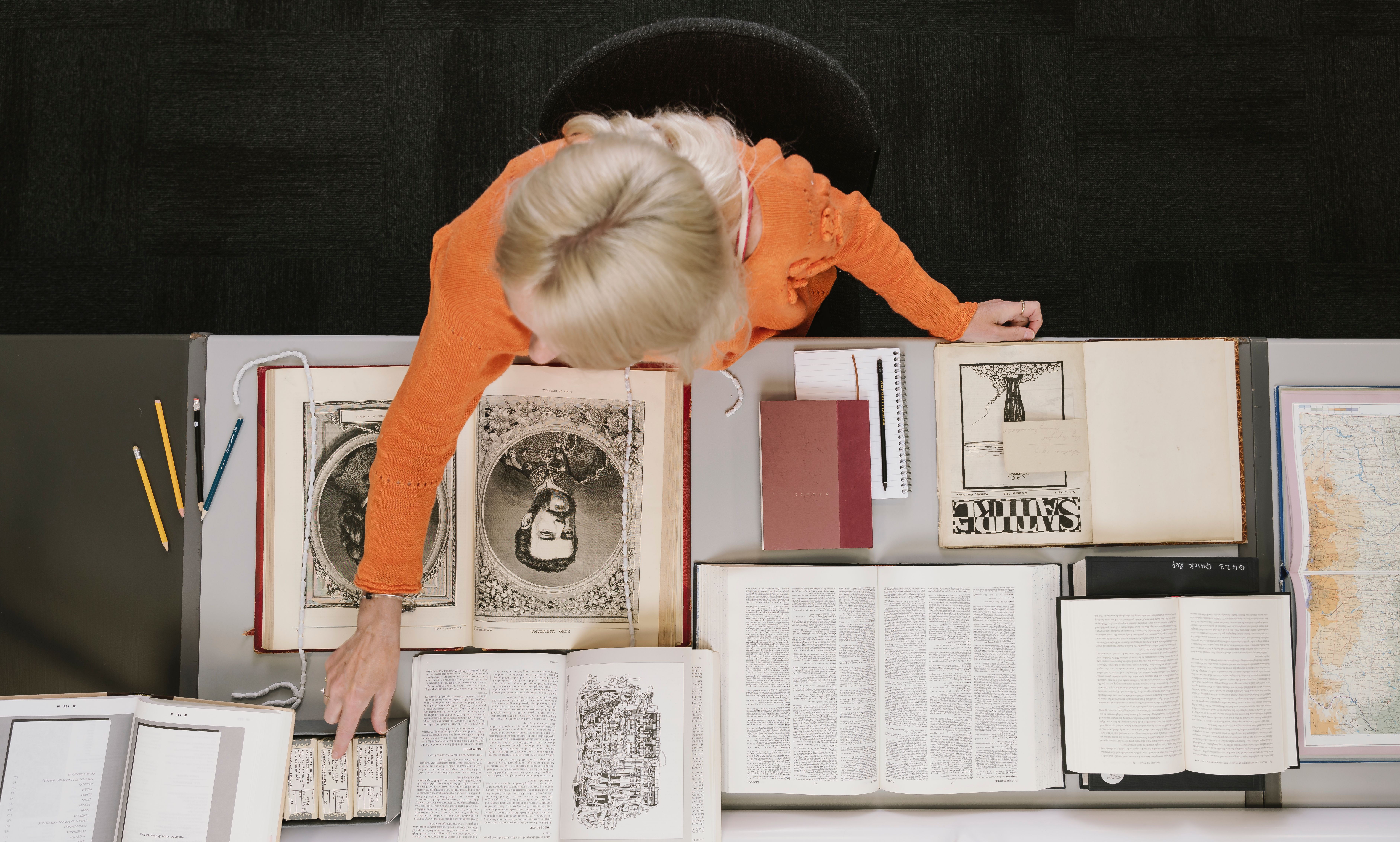
British Library collections - The British Library
Explore the British Library's collection of over 170 million items, such as books, manuscripts, newspapers, maps, sound recordings, photographs and digital resources
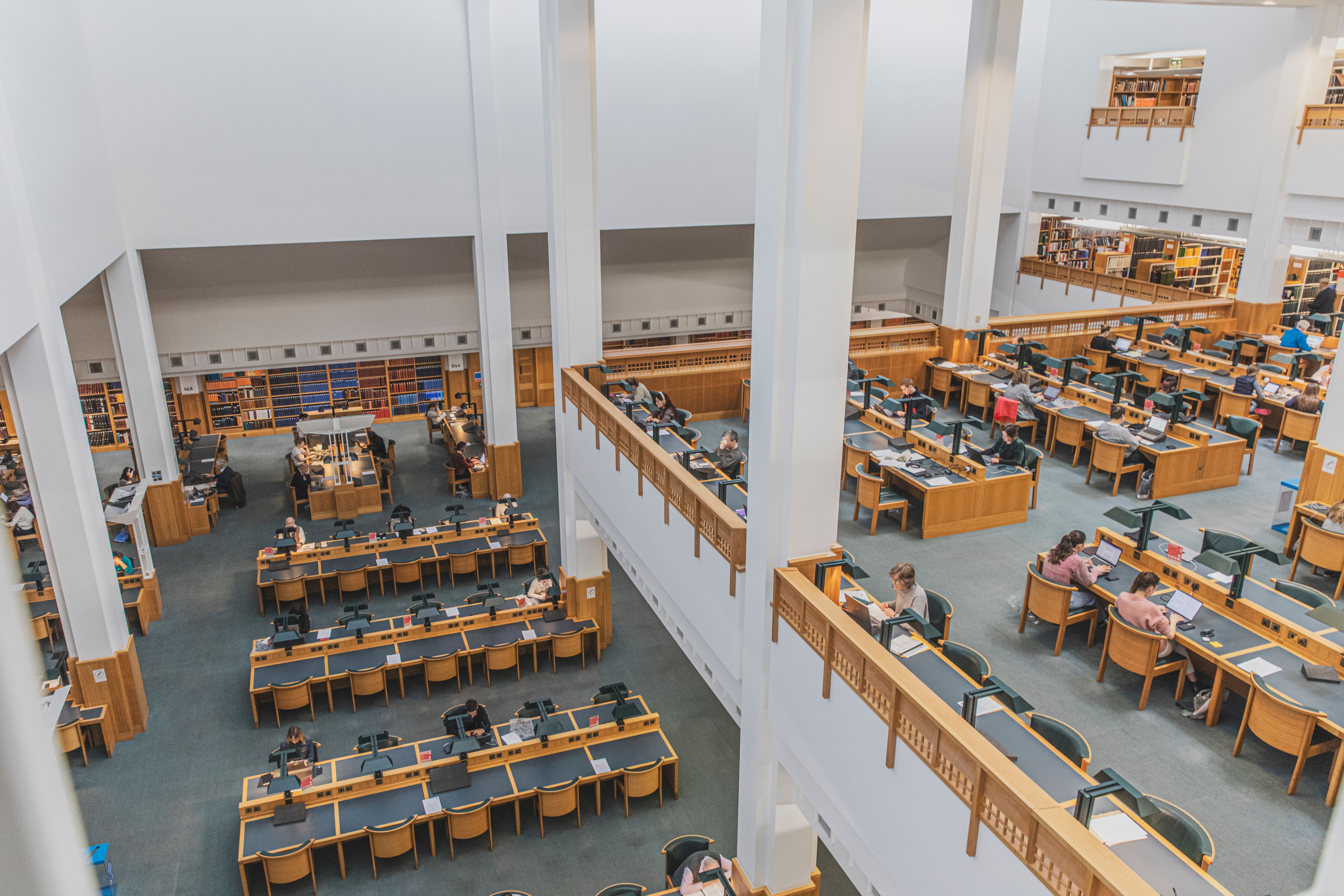
Reading Rooms and study spaces
Use our free study spaces in London and West Yorkshire. They have comfy seats, power outlets and free Wi-Fi.

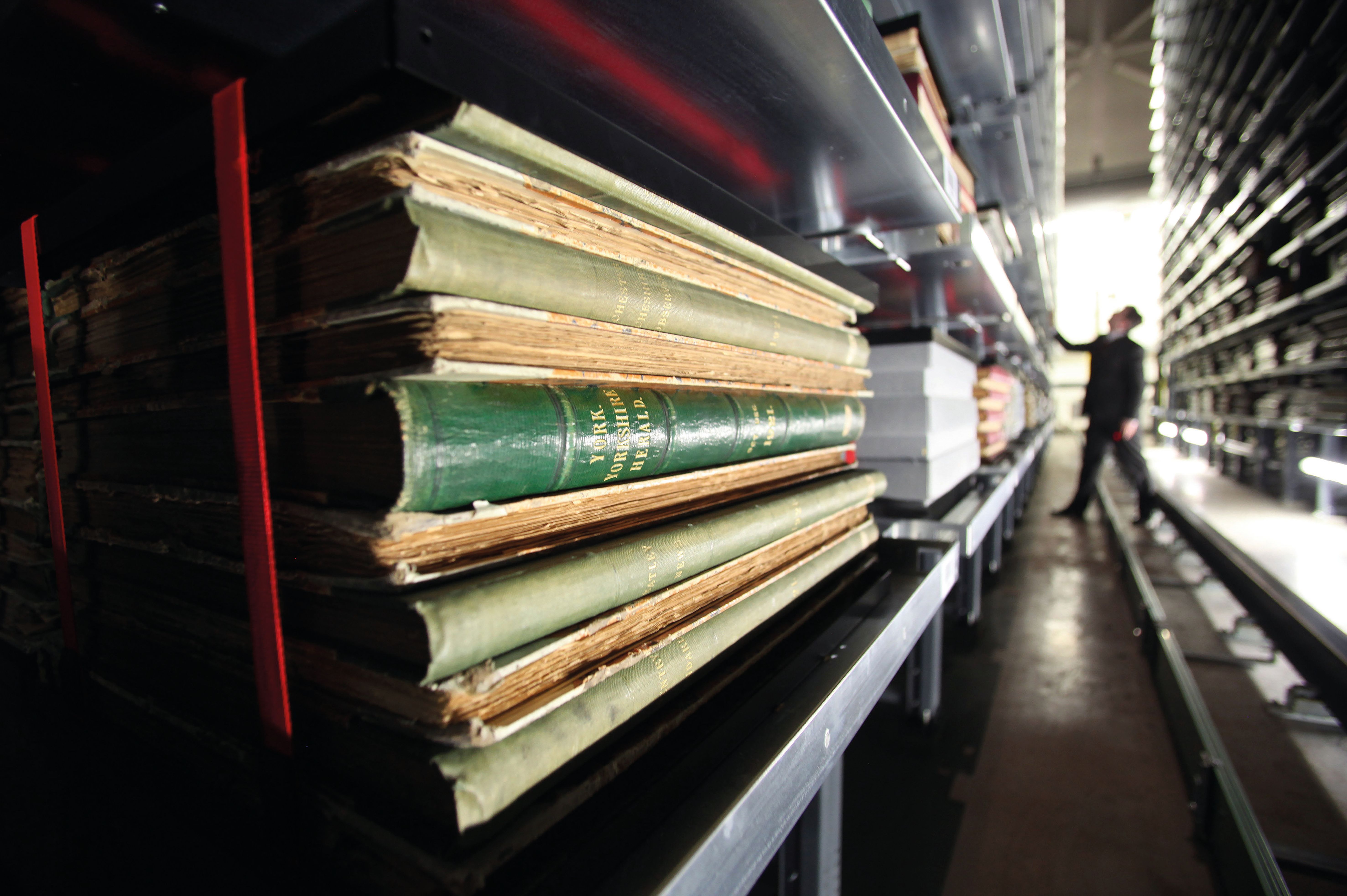
Other services for researchers


Stories from our collections
Uncover the wonders of our collections through our blogs, articles, and news.


Ideas and inspiration sent directly to your inbox
Join our mailing list to keep up to date with Library news and events.
By clicking 'Sign up' you agree that you wish to regularly receive news and update emails from the British Library. You can unsubscribe at any time. View our Privacy Policy for more information.
If you encounter any problems subscribing please contact us.